
This task will show you how to visualize Vibration Modes after computing the Frequency Analysis Case and how to generate a Report.

-
Click Deformation
 in the Image toolbar.
An image of the deformation corresponding to the first vibration mode is displayed, and a Deformed Mesh image object appears in the specification tree under the Frequency Case Solution.1 objects set.
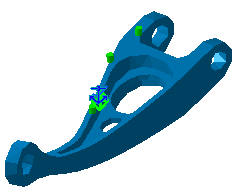
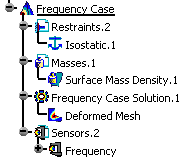
-
Double-click the Deformed Mesh object in the specification tree to edit the image.
The Image Edition dialog box, containing the list of vibration modes with the corresponding frequency occurrences is visualized. You can visualize any mode by clicking it in this multi-occurrence list.
-
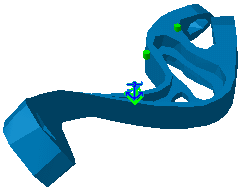
Select the Occurrences tab in the Image Edition dialog box and select the seventh mode.
The selected mode is visualized:
-
Click OK.

- You can further manage your results by using the Results Management
action icons on the bottom of your screen.
For more details, refer to Results Visualization. - In addition to standard information, the Report for a Frequency Case Solution contains modal participation factors information, which allows you to evaluate the validity of the modal truncation to the first 10 modes.
- You can modify the number of computed modes by double-clicking the Solution and editing the Solution Definition dialog box.
