Outsmarting the Smart
Interface
by Winn L. RoschPC MAGAZINE AUGUST 1989 vol 8, no 14, page 248-249
NOTE: There is no easily accessible description and schematic to explain the IBM Monitor Sense / Monitor ID circuit. Although this is to force monochrome, I think it can be just as easy to enable color. on MCGA systems. Also, if you wandt to force color, you will need to connect Red and Blue video lines as well as Red and Blue return lines. -LFO
The connection between your VGA display adapter and monitor is smart—by using special signals, it tells your PC whether a color or monochrome VGA monitor is attached. Sometimes it can be too smart, however, and prevent you from using familiar software.
Although a monochrome VGA display system is fully capable of running CGA, EGA, and VGA graphics, an occasional graphics program won't run on monochrome VGA systems. If you ever face a blank screen or an error message like “Program requires a graphics adapter," you're the victim of such an incompatibility. But you can fight back with a couple of quick tricks.
ROOT OF THE PROBLEM
The refusal of some monochrome VGA systems to run graphics applications is a result of some graphics programs' relying on an old-fashioned method of checking whether you have a monochrome or color display adapter. The program checks a special equipment flag in your computer's memory, located at absolute memory location 0000:0463 (hexadecimal).
A value of 0B4 (hex) at this location indicates that a monochrome display is active; 0D4 (hex) indicates a color display. These numbers correspond to the least significant byte of base addresses of the registers of the video controller chips on IBM’s MDA and CGA video boards, which arc 03B4 (hex) and 03D4 (hex), respectively.
When a program relies on the value that this flag waves, it’s certain to run into problems with a monochrome VGA system. Although new monochrome display systems (such as VGA) are graphics-ready, they still run the same monochrome flag up the pole as did the original nongraphics MDA. As a result, older graphics applications see the monochrome flag and assume that they cannot run, even though the equipment would allow them to. The problem can be particularly baffling because more-recent graphics software—designed and written with full understanding of the VGA system—will execute without a hitch.
Newer display systems add extra BIOS code to your computer containing a dedicated function that programs can use to directly determine what kind of display equipment is installed in your system. IBM’s PS/2 series VGA systems, for example, include a specific function call—Interrupt 10 (hex), function 1A (hex)—which will inform programs of both the type of monitor and display adapter connected. Of course, for this feature to be useful, programs must be specifically written to take advantage of it. Older programs .unaware of exotic new hardware or even the new function call, cannot avail themselves of its aid.
TWO OPTIONS
You have two options for working around this color/monochrome dissonance. One is simple and will work with most programs—the DOS program MODE.COM will change the value stored in the display adapter flag. Executing the command MODE CO80 at the DOS prompt will tell your system to load the value for a color display into the flag. If a program with graphics refuses to run on your monochrome display, try executing this command before running the application.
To return to normal monochrome operation when your backward-thinking graphics application is done, simply type MODE MONO.
Of course, the simple, software only scheme has some shortcomings. If you don’t have a truly hardware-compatible VGA display adapter, when you change the video mode (if the program will let you) you might not see anything on the screen because your software will be trying to use a video adapter you don’t have.
Worse yet, some programs (several games among them) persist in isolating you from DOS, denying access to the MODE command. But you can outsmart these programs as well as the IBM display-type detection system by making a special adapter for your VGA-adapter-to-monitor cable. By changing a single connection, this adapter will make your system sense a color display instead of monochrome and load the base address of a color display register into the monitor flag area.
VIDEO THOUGHT CONTROL
Wire up this adapter cable and switch, and you can control whether your system thinks you have a monochrome or color VGA display: only six conductors are required, even though VGA connectors have room for 15. Two pins—11 and 12 on the display adapter side of the cable—are used for coding whether you have a color or monochrome display. When pin 11 is connected to a digital ground (conveniently available on pin 10), your system will assume you have a color display. When pin 12 is grounded instead, your system will think you have a monochrome VGA display. Attach a switch to these pins as shown, and you’ll be in charge of what kind of display your computer thinks is attached.
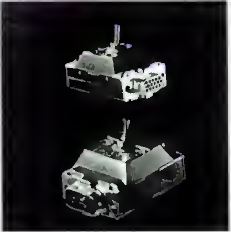
A smart switch can compensate for dumb graphics software that doesn’t know how to handle monochrome VGA.
NOTE: HDD15 pins per the HITR
11 - ID0
12 - ID1
13 - EXT HSYNC
14 - EXT VSYNC
Display mode selector for monochrome VGA monitor cables
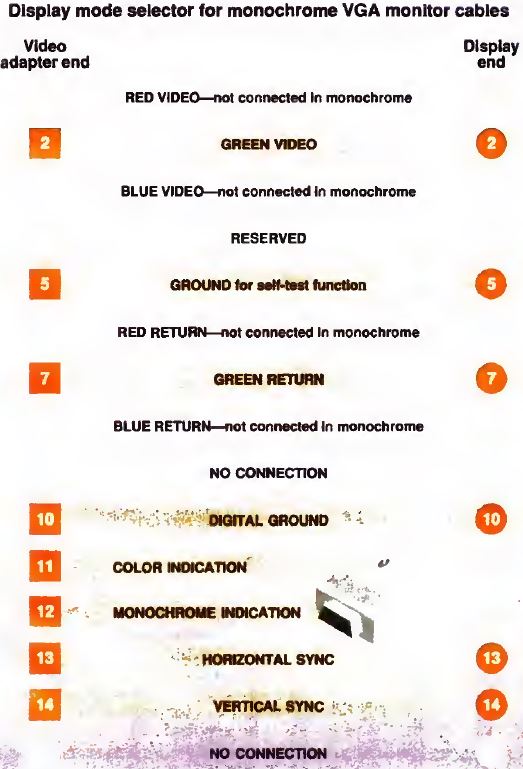
Once you've connected the adapter, the troublesome color programs will run, although mapping colors to monochrome may be far from optimal. Red and blue won't show, and different green tones will register as shades of gray, because only the signal wire meant for the green color gun is wired to the monochrome VGA display input.
Incidentally, don't try bridging the red, green, and blue signals together to improve monochrome color rendition when making your adapter. Remember, these are monochrome video signals, which don't add up the way you might think. Generally, the stronger signal prevails. Bridging together the signals also holds the potential of damaging your video adapter.
Besides enabling your monochrome display to run color software, this adapter can make your system think a color display is monochrome (I don't know why you'd want it to, however). Add a switch, and you—not some gray-flannel standard—can determine what your computer thirties.
Note that the video base address is loaded into the display flag area only when your system boots or when you execute the MODE command to change displays. You can't just flip the switch and assume your system will notice the change. You will have to run MODE.COM to do that...